Outline
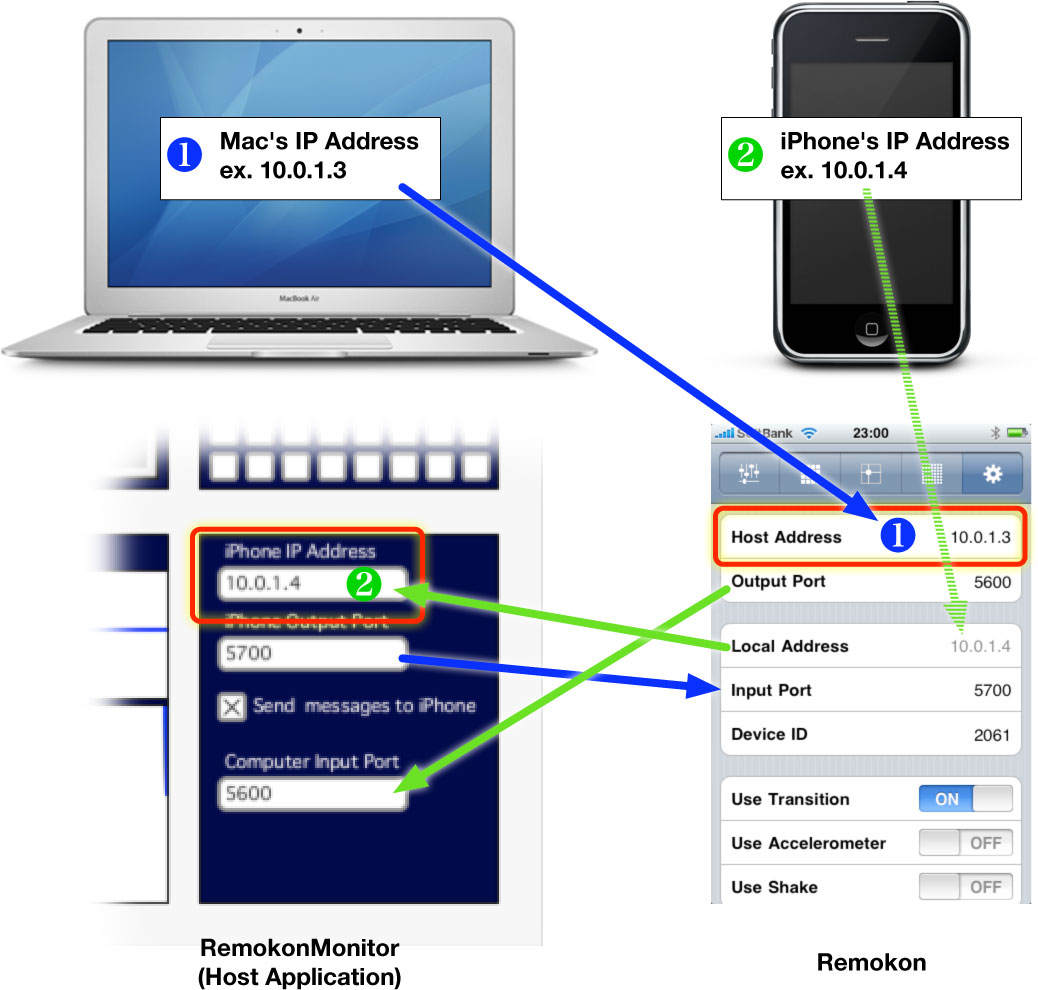
Using a Wi-Fi LAN
You can connect your Mac and your iPhone via Wi-Fi LAN if it exists.
Setup your Mac
1. Open “Network” Preference.
2. Choose “AirPort” or “AirMac” in the list.
3. Choose the existing Wi-Fi netowrk in “Network Name” pop-up menu. ex. “akaMitExpress” in this case.
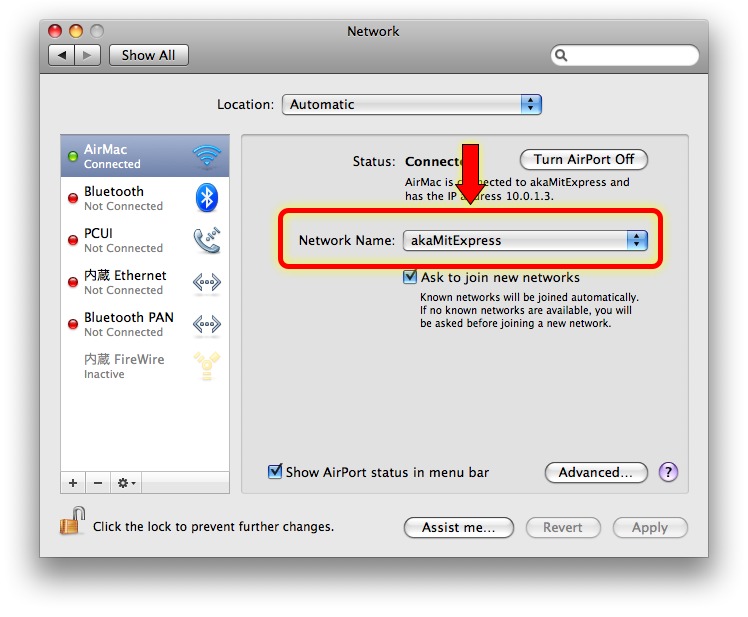
4. Click “Advanced…” button.
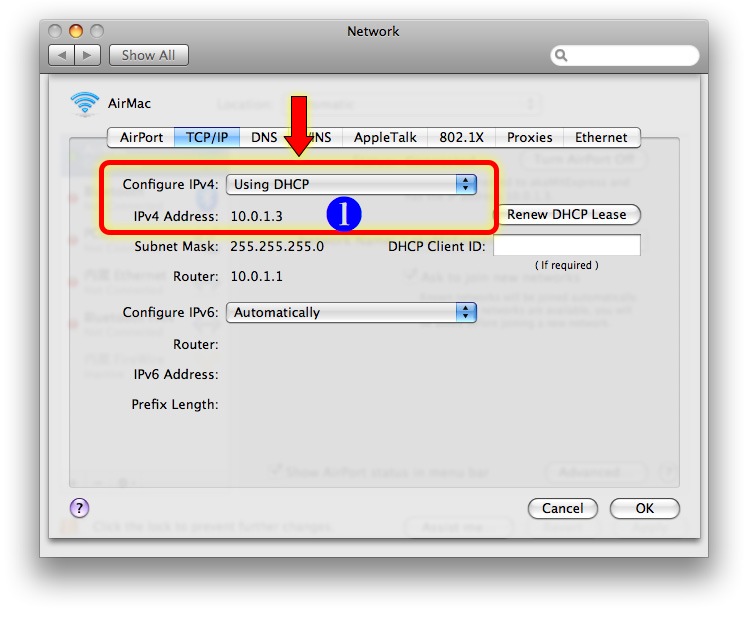
5. Setup TCP/IP according to the LAN you are using.
6. Confirm your Mac’s IP Address. ex. “10.0.1.3” in this case.
Setup your iPhone
1. Open Settings application.
2. Choose “Wi-Fi” item.
3. Turn “Wi-Fi” on.
4. Choose your Mac. ex. “akaMitExpress” in this case.
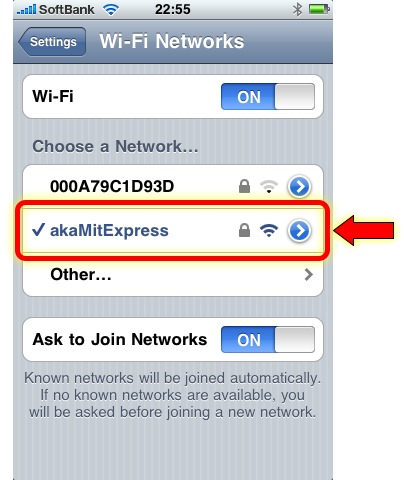
5. Tap “Arrow” button on the right side of the item.
6. Setup IP Address according to the LAN you are using.
7. Confirm your iPhone’s IP Address. ex. “10.0.1.4” in this case.
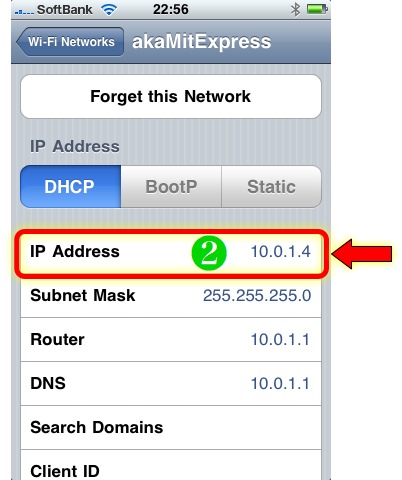
Setup RemokonMonitor (on Mac)
1. Open “RemokonMonitor” application (or any host application).
2. Set your iPhone’s IP Address in “iPhone IP Address” field. ex. “10.0.1.4” in this case.
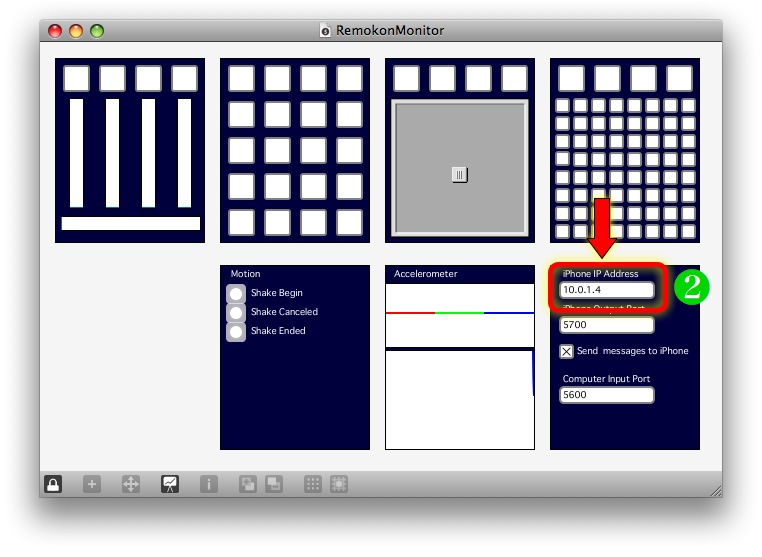
Setup Your Remokon (on iPhone)
1. Open “Remokon” application.
2. Tap “Gear” icon on the top bar.
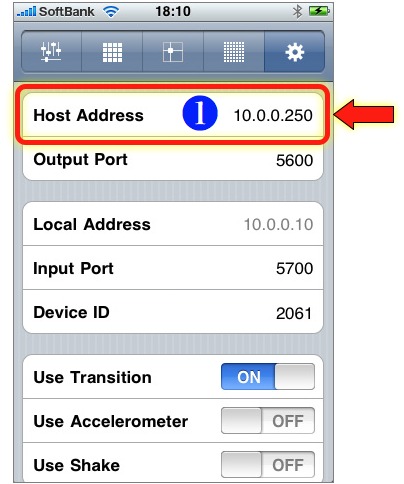
3. Set your Mac’s IP Address in “Host Address” ex. “10.0.1.3” in this case.
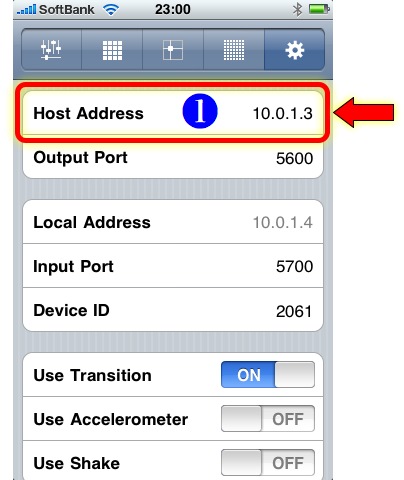
Using a Built-in AirPort
When you can’t use a Wi-Fi LAN, you can make your Mac’s built-in AirPort as a Wi-Fi Basestation. Then you can connect your iPhone to your Mac.
Setup your Mac
1. Open “Network” Preference.
2. Choose “AirPort” or “AirMac” in the list.
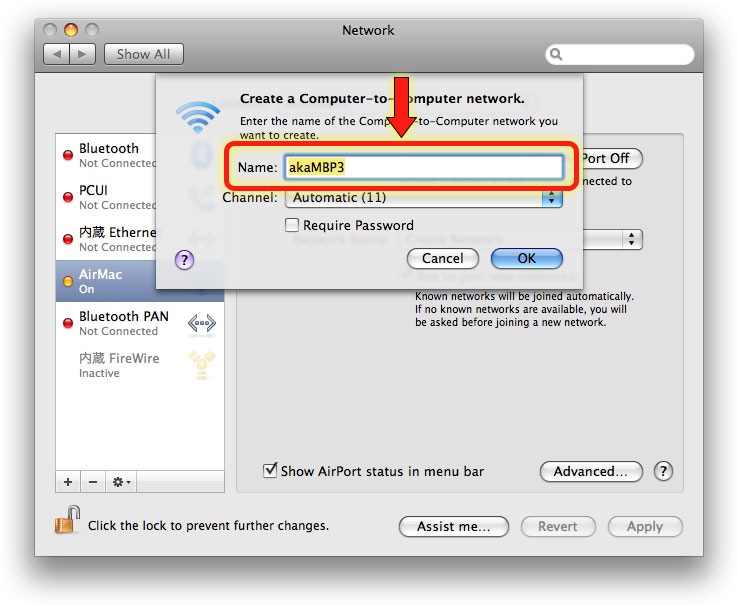
3. Choose “Create Network…” in “Network Name” pop-up menu.
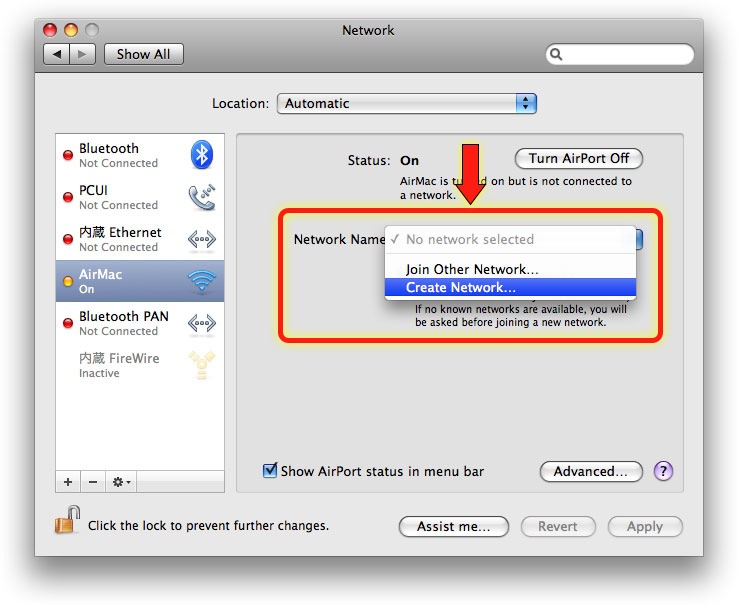
4. Set your Mac’s Name. ex. “akaMBP3” in this case.
5. Click “OK” button.
6. Click “Advanced…” button.
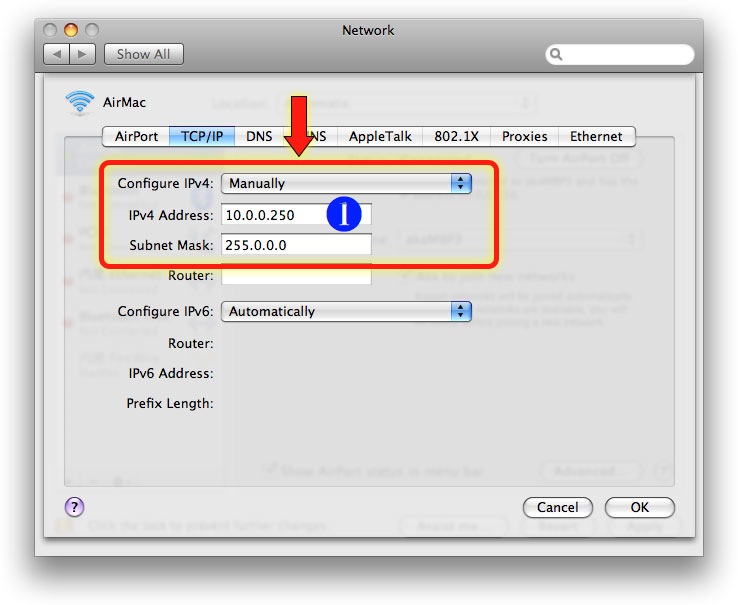
7. Click “TCP/IP” tab.
8. Choose “Manually” in “Configuration IPv4” pop-up menu.
9. Set your Mac’s IP address. ex. “10.0.0.250”
10. Set your Mac’s Subnet Mask. ex. “255.0.0.0”
11. Click “OK” button.
Setup your iPhone
1. Open Settings application.
2. Choose “Wi-Fi” item.
3. Turn “Wi-Fi” on.
4. Choose your Mac. ex. “akaMBP3” in this case.

5. Tap “Arrow” button on the right side of the item.
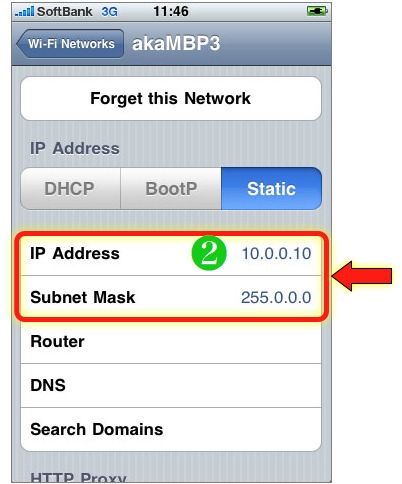
6. Choose “Static” in “IP Address” control.
7. Set your iPhone’s IP Address. ex. “10.0.0.10” in this case.
8. Set your iPhone’s Subnet Mask. ex. “255.0.0.0” in this case.
Setup RemokonMonitor (on Mac)
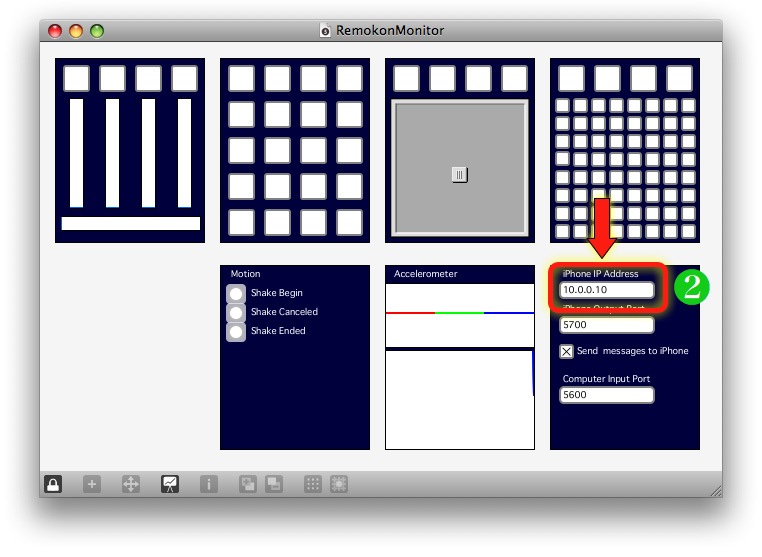
1. Open “RemokonMonitor” application (or any host application).
2. Set your iPhone’s IP Address in “iPhone IP Address” field. ex. “10.0.0.10” in this case.
Setup Your Remokon (on iPhone)
1. Open “Remokon” application.
2. Tap “Gear” icon on the top bar.
3. Set your Mac’s IP Address in “Host Address” ex. “10.0.0.250” in this case.
i set all correct, but the connection doesn’t work.
Hi lglollo, Would you show me your settings ? (upload screenshots, etc.)
now it’s ok, thanks. I also set the ip of the router, and then ran. thanks anyway
hello, I bought Remokon on appstore, download remokon monitor and try to set an air port connection but I couldnt do it, I was looking for help but I saw only help for iPhone and iPad and I have an iPod first generation, can you please help me?
Hi Eduardo, Sorry for my delaying. (I don’t know why but I was not notified to your post.) I think the iPod first generation will work as same as iPhone. Let me know screenshots of your setup screens if you still have a trouble. Thank you.
hello, I’m having trouble getting this to work with Ableton Live, I have it working on my ipod and through the monitor, but when I go to use it in ableton nothing happens,
Hello Brennan, Ableton Live dose not support OSC directly. Therefore you have to use a OSC-to-MIDI converter such as i3L.
http://thrill.artificialeyes.tv/i3L_v0.2
so it can only work if it is jailbroken? I was able to get the max for live remokon monitor patch
Hi Brennan, You don’t have to jailbreak your iPhone. Remokon works on a normal iPhone/iPod touch.
赤松さん
初めまして、久保と申します。
OSC Remokonをmaxで使い楽しませていただいてます。
しかし、まったく同じ設定で別のmacbookでは、macからiphoneの制御ができても、iphoneからmacの制御ができません。
同じ設定なのになぜでしょうか?
macは可動するのがヴァージョン10.7.1動かないのが10.5.2です。
iphoneは4.3.2です。
もしなにかヒントが思い浮かばれたら、教えていただきたいです。
よろしくお願いします。
久保さん、2台のMacをお使いで、10.7では動くけれど、10.5では動かない、ということですか? もしそうなら、Maxまたは10.5の問題ということになりますね。2台のMacでMax同士の通信はできていますか? はっきりとした原因は思い当たらないのですが、いろいろと条件を変えて原因を特定できないでしょうか?
赤松さん
お返事ありがとうございます。2台のmacでmaxやってみます。
maxの問題でexternalのosc route が必要なのではと思い、externalに入れたのですが、ダメでした。
あとmax windowにvexpr: doesn’t understand “storage.json”とでます。
もう少し条件をしぼってまたご連絡いたします。
久保さん、osc-routeは使っていないので関係ないと思います。vexprにstorage.jsonと出るのも変ですね。10.7で動くのであれば、10.5も10.7にアップデートされてはいかがでしょうか? 私は10.5を使っていないので、挙動を確認していませんが…
赤松さん
問題が解決いたしました。
初歩的なことで本当に申し訳ないのですが、ファイアウォールが原因で受信許可がなく、信号を受け取ることができませんでした。
システム環境設定→セキュリティ→ファイアウォール→でアプリケーションに許可を与えてudpをrecieve可能にしました。storage.jsonは謎ですが、osもmaxも問題ないです。
さっそく使ってます!!楽しいです!!!
早急かつご丁寧な対応ありがとうございました。
久保
久保さん、解決されたとのことで何よりです。ファイアウォールとは盲点でした(自己反省)。