 [App Store]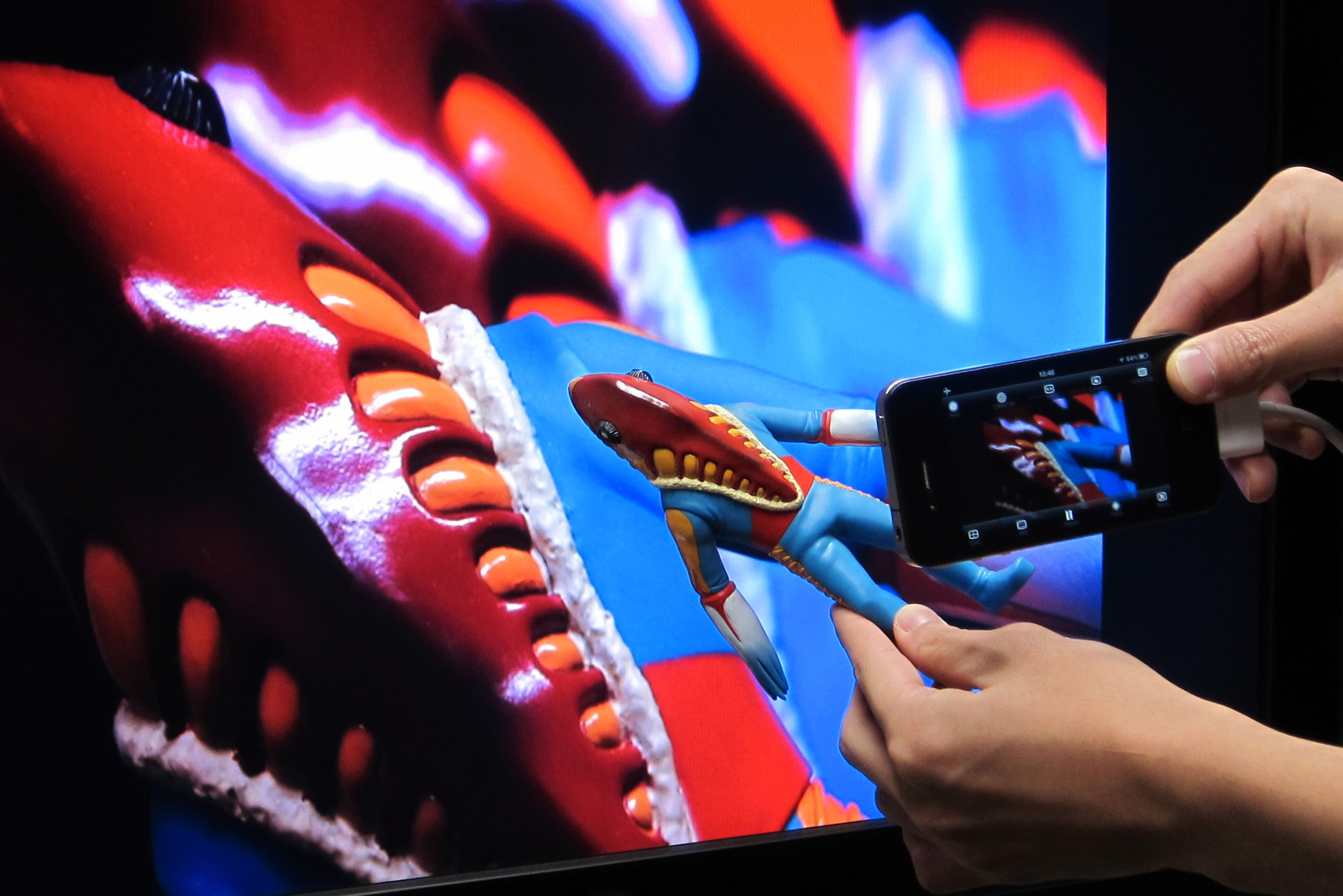
CameraVision – Visual Presenter
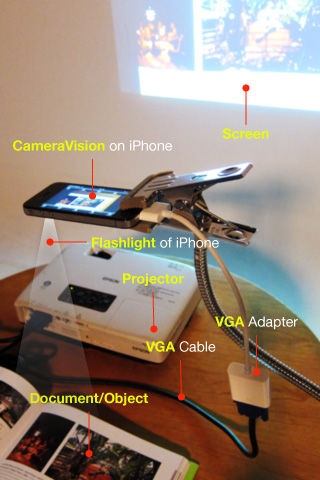
“CameraVision” outputs the images of the built-in camera and the corresponding sounds from the built-in microphone to an external device such as a projector or a TV monitor. This application can be used similar to a “document camera (overhead projector)” or a “live camera” to project documents, objects, people or scenes onto a large screen. In addition, showing a still image from Photo Albums is possible. A Dock/Lightning-connector adapter/cable can be used and the wireless transfer to Apple TV (AirPlay) is also supported.
This application runs on the following devices:
- iPhone 4 / 4S / 5
- iPod touch (4th, 5th generation)
- iPad 2, The new iPad, iPad Retina (on iPhone compatible mode)
- iPad mini (on iPhone compatible mode)
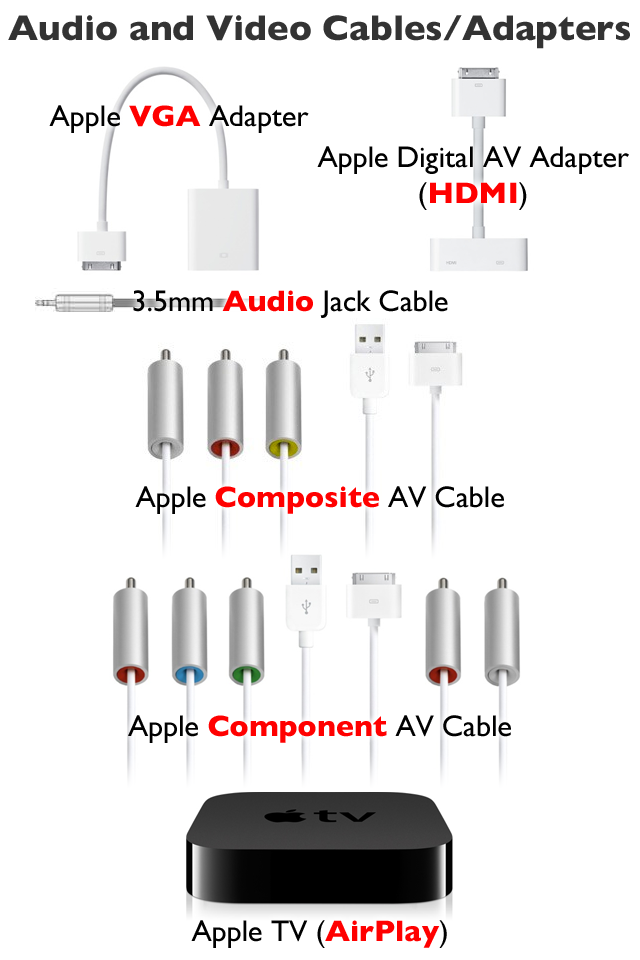
The following adapters/cables are supported:
- Lightning to VGA Adapter
- Lightning Digital AV Adapter (HDMI)
- Apple VGA Adapter
- Apple Digital AV Adapter (HDMI)
- Apple Composite AV Cable
- Apple Component AV Cable
- Apple TV (2nd, 3rd generation)
This application has the functions listed below. You can set them up easily using the buttons on the screen.
- Rear camera / front camera switching
- Camera image resolution switching from SD (640×480 pixels) up to Full HD (1920×1080 pixels)
- External display image resolution switching from SD (640×480 pixels) up to Full HD (1920 x 1080 pixels)
- Scale mode switching of “Fit”, “Fill” or “Resize”
- Image rotation switching of “Rotatable” or “Fixed”
- Image pausing or playing
- Flash light switching
- Audio output from microphone
- Display of an on-screen pointer at touched position
- Display of a grid image – useful to adjust image projection
- Display of setting informations on an external display
- Image black out switching
- Automatic adjustment of focus, exposure and white balance
- Displaying a still image from Photo Albums
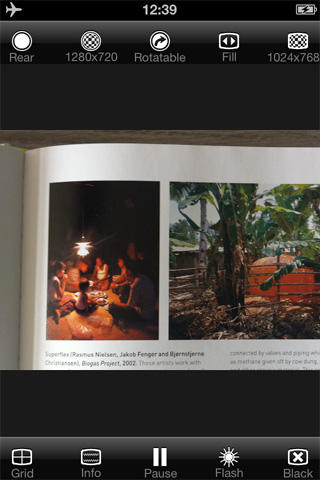
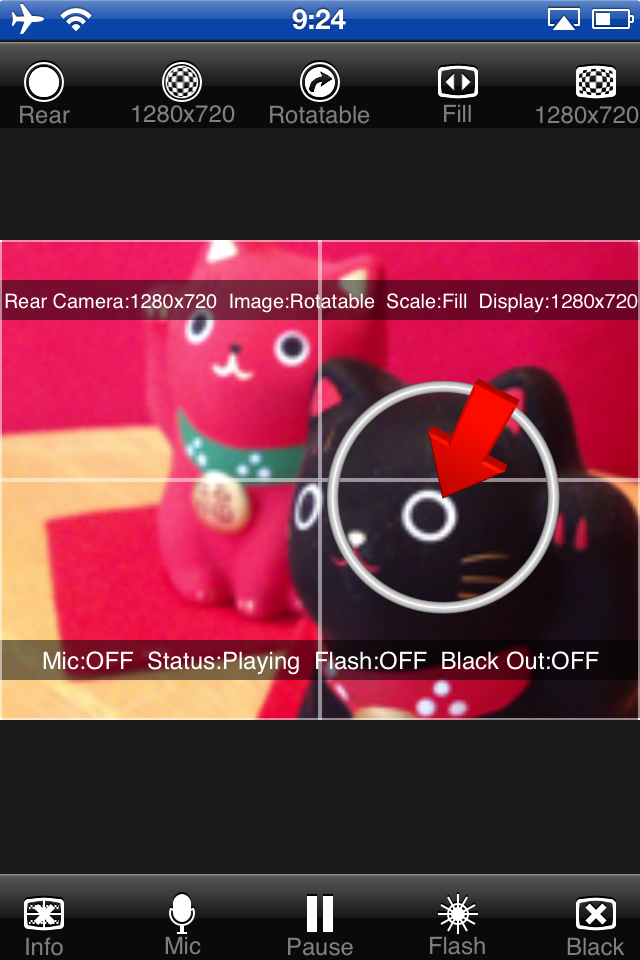
* These functions depend on devices and adapter/cables used. For example, the resolution of the front camera of an iPhone 4 and an iPod touch (4th generation) is SD (640×480 pixels). An iPod touch (4th generation) dose not have a flash light, and so on.
* Please unplug and then plug your dock adapter/cable if no image is shown on the external display properly.
* Microphone input can be sent to an external speaker via HDMI, Composite or Component cable with the camera image. It can be sent wirelessly to Apple TV (AirPlay). When using a VGA cable, plug an audio cable to iPhone’s headphone jack.
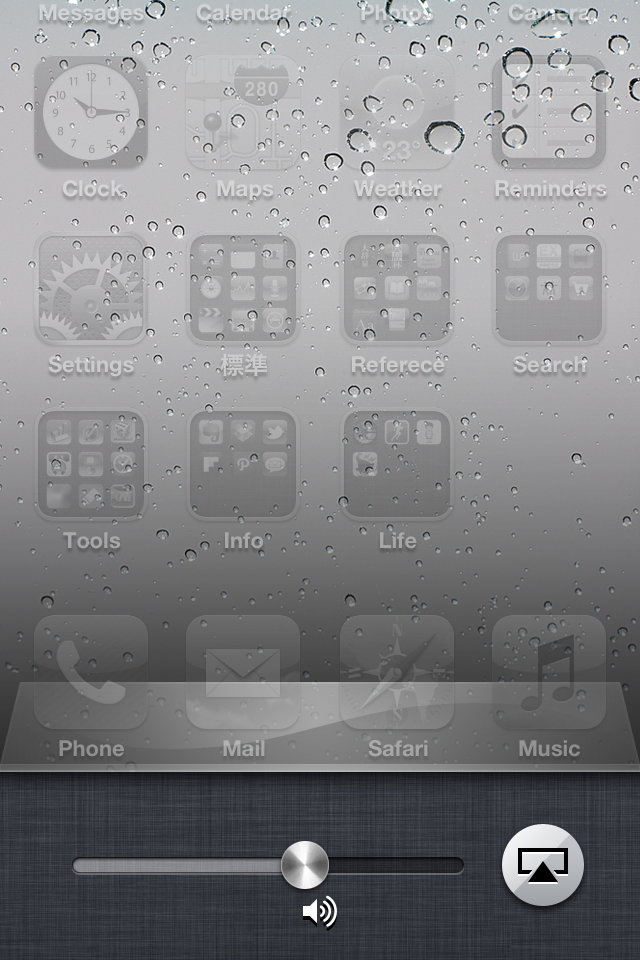
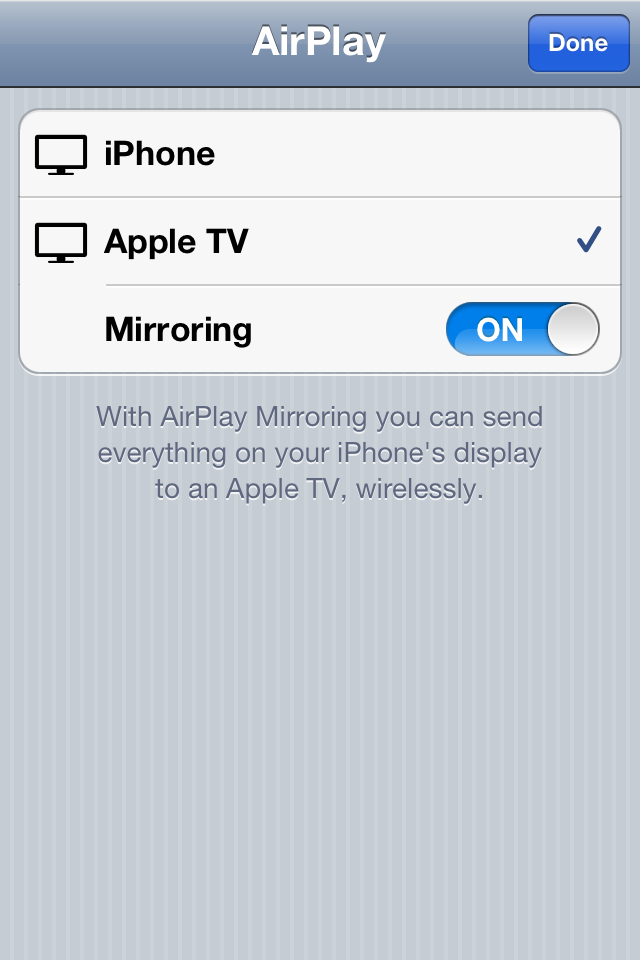
* To work with Apple TV, tap the home button twice, then go to the leftmost page, tap the AirPlay button, select your Apple TV and turn on mirroring. iPhone 4 and iPod touch 4th generation doesn’t support AppleTV.
Setting up and troubleshooting AirPlay Mirroring
CameraVision – 書画カメラ
CameraVisionは内蔵カメラの映像や内蔵マイクの音声をプロジェクタやテレビなどの外部機器に出力するアプリケーションです。書画カメラやOHPのように資料や品物をプロジェクタに映し出したり、ライブ・カメラとして人物や風景をテレビに表示することができます。また、写真アルバムから選択した静止画を表示することもできます。Dock/Lightningコネクタに接続するビデオ・アダプタやビデオ・ケーブルが利用できるとともに、Apple TVへのワイヤレス送信 (AirPlay) も可能です。
このアプリケーションは以下のデバイスで動作します。
- iPhone 4 / 4S / 5
- iPod touch(第4世代、第5世代)
- iPad 2, The new iPad, iPad Retina(iPhone互換モード)
- iPad mini(iPhone互換モード)
以下のアダプタやケーブルを利用できます。
- Lightning – VGAアダプタ
- Lightning – Digital AVアダプタ (HDMI)
- Apple VGAアダプタ
- Apple Digital AVアダプタ (HDMI)
- AppleコンポジットAVケーブル
- AppleコンポーネントAVケーブル
- Apple TV (第2世代、第3世代)
このアプリケーションには以下の機能があり、スクリーン上のボタンで簡単に設定することができます。
- リア・カメラとフロント・カメラの切替
- SD(640×480ピクセル)からフルHD(1920×1080ピクセル)までのカメラ解像度の切替
- SD(640×480ピクセル)からフルHD(1920×1080ピクセル)までの外部ディスプレイ解像度の設定
- Fit、Fill、Resizeの3種類の映像拡大モードの設定
- デバイスの向きに応じた映像の自動回転と回転固定の切替
- カメラ映像の一時停止と解除
- フラッシュライトの点灯と消灯
- マイク音声のスピーカ出力
- タッチした位置でのオン・スクリーン・ポインタの表示
- プロジェクタでの投影調整に便利なグリッド(格子模様)の表示
- 各種設定を外部ディスプレイ上で確認できるインフォメーションの表示
- カメラ映像を暗転させる画面消去と解除
- フォーカス、露出、ホワイトバランスの自動調整
- 写真アルバムから選択した静止画の表示
* 上記の機能はデバイスや接続するアダプタや外部機器によって異なります。例えば、iPhone 4やiPod touch(第4世代)のフロント・カメラの解像度はSD(640×480ピクセル)になります。またiPod touch(第4世代)にはフラッシュライトが備わっていません。
* 外部ディスプレイに映像が適切に出力されない場合は、アダプタやケーブルを抜き差ししてください。
* カメラの映像と同時にマイクの音は、HDMI、Composite、Componentケーブルを使って外部機器のスピーカへ出力できます。Apple TV (AirPlay) ではワイヤレスで送られます。VGAアダプタを用いる場合は、iPhoneのヘッドフォン端子にオーディオ・ケーブルを接続して利用してください。
* Apple TVに接続するには、ホーム・ボタンをダブル・タップし、一番左のページのAirPlayボタンをタップしてApple TVを選択し、ミラーリングをオンにします。iPhone 4とiPod touch 第4世代はApple TVを利用できません。

CameraVision – 비쥬얼 프레젠터
CameraVision은 아이폰 내장 카메라와 마이크를 통한 영상과 음성을 프로젝터 혹은 TV 등의 외부기기로 출력하는 어플리케이션입니다. OHP(오버 헤드 프로젝터)처럼 서류 혹은 여러 사물들을 프로젝터를 통해 영사하거나, 라이브 카메라처럼 인물이나 풍경을 TV에 표시하는 것이 가능합니다. 또한 앨범에서 사진을 선택하여 큰 화면에 표시하는 것도 가능합니다. 비디오 어뎁터와 비디오 케이블을 통한 외부기기와의 연결은 물론, Apple TV를 통한 무선 연결(AirPlay)도 가능합니다.
이 어플리케이션은 이하의 기기에서 동작합니다.
- iPhone 4 / 4S / 5
- iPod touch (4세대, 5세대)
- iPad 2, The new iPad, iPad Retina (iPhone호환 모드)
- iPad mini (iPhone호환 모드)
이하의 어뎁터, 케이블이 이용 가능합니다.
- Lightning-VGA 어댑터
- Lightning Digital AV 어댑터 (HDMI)
- Apple VGA 어뎁터
- Apple Digital AV어뎁터 (HDMI)
- Apple 컴포지트 AV 케이블
- Apple 컴포넨트 AV 케이블
- Apple TV (2세대, 3세대)
이 어플리케이션은 이하와 같은 기능이 있으며, 스크린상의 버튼은 간단히 설정할 수 있습니다.
- 리어 카메라와 전면 카메라 전환
- SD (640×480픽셀)부터 Full HD (1920×1080픽셀)까지의 카메라 해상도 변환
- SD (640×480픽셀)부터 Full HD (1920×1080픽셀)까지의 외부 디스플레이 해상도 설정
- Fit, Fill, Resize 3종류의 영상 확대 모드 설정
- 디바이스의 각도에 따른 영상의 자동 회전
- 카메라 영상의 일시정지
- 플래시 라이트 점등
- 마이크 음성의 스피커 출력
- 화면을 터치한 위치를 온 스크린 포인터로 표시
- 프로젝션 시, 투사 각도 조절에 편리한 그리드 (격자문양) 표시
- 각종 설정을 외부 디스플레이에서도 확인 가능하도록 인포메이션을 표시
- 화면 암전
- 포커스, 노출, 화이트 밸런스 자동조절
- 사진 앨범으로부터 선택한 사진의 표시
* 위에서 언급된 기능은 디바이스와의 접속에 사용된 어뎁터, 그리고 외부기기의 성능에 따라 달라집니다. 예를 들어, iPhone 4와 iPod touch(4세대)의 전면 카메라의 해상도는 SD (640×480픽셀)로 설정됩니다. 또한 iPod touch (4세대)에는 플래시 라이트가 구비되어 있지 않습니다.
* 외부 디스플레이에 영상이 제대로 출력 되지 않을 경우에는, 어뎁터 혹은 케이블을 빼었다가 다시 연결해 주십시오.
* 마이크 음성은 HDMI, Composite, Component 케이블을 사용하여 외부기기의 스피커로 출력 하는 것이 가능합니다. Apple TV(AirPlay)를 사용할 경우에는 무선으로 출력이 가능합니다. VGA어뎁터를 사용할 경우에는 iPhone 헤드폰 단자에 오디오 케이블을 연결하여 사용해 주시길 바랍니다.
* Apple TV에 접속하기 위해서는, 홈 버튼을 두번 누른 후, 가장 왼쪽 페이지의 AirPlay 버튼을 선택 후, Apple TV를 선택하여 미러링 기능을 켜주시길 바랍니다. iPhone 4와 iPod touch 4세대에서는 Apple TV를 지원하지 않습니다.
早速インストールして見ましたが、起動後真っ暗な画面が数秒表示され最終的にアプリタップ前の画面(Spring Board)に戻ってしまいます。
OSは4.1(8B117)ですが、Jailbreakしています。Jailbreakがまずいのでしょうか。
TJさん、JBが悪影響を与えているのかどうか分かりませんが、同じように4.1(JB)で画面が真っ暗になるが4.2(Normal)にアップデートしたところ正常に表示されるようになった、という方がいらっしゃました。参考までに。
Akamatsuさん
やはりそうですか。わかりました、OSアップグレードをしてやってみます。ありがとうございます。
昨日 CameraVisionやスキャナー用に良い感じの三脚を見つけました。
http://labo.turtleback.hk/?p=50&lang=ja
FlexScan S2411W にiPhone をApple iPad Dock Connecter VGAアダプタ経由でつないでみましたが、画面は反応しません。
iPhone のOSは、最新です。
なにかよい方法ありますか?
吉田さん、その機種では試したことがないので、具体的には分かりかねますが、アダプタの抜き差しをしてもダメですか? それから、他のアプリでは出力できていますか?
IO-DATAで動きました。そしてアダプタの抜き差しをでFlexScanも動きました。
ありがとうございます。
液晶プロジェクターは何処でもあるように成りましたが、書画カメラはあまりないので重宝すると思います。
iPhone用の他のアプリでiPad Dock Connecter VGAアダプタは使えるですか?
吉田さん、アダプタの抜き差しの効果があったようで良かったです。他にもVGAアダプタに対応しているアプリがあるようですよ。
特に記述はなさそうですが、iPhone3GSにはやっぱり非対応ですか?
iPhone上(iOS4.2)には表示されるんですが、ディスプレイが見つからないって表示も一緒に出ていて、コンポジットケーブルでテレビに出力できないんですよね…。
わたるそらさん、残念ながら3GSではいずれのケーブルもアダプタも動作確認ができていません。将来のOSのバージョンアップ等で対応できるかもしれませんが、現状では難しいようです。
早速の回答ありがとうございます。
ちょっと残念ではありますが、OSのバージョンアップ(か、新しいiPhoneへの買い替え)を期待して待ってます。
こんなアプリを探していたので、待つ分だけ期待値が高まってしまいます…。
What kind of clamp is holding the iPhone?
Hi Kathy, I’m using a cheap clamp as below (it’s in Japanese). Of course, you can use any clamp.
http://www.yazawa-online.com/list/320100/
Thank you.
ピンバック: CameraVision – 書画カメラ | Apps Cafe
I absolutely love this app. So clean and well done. Any chance you might consider adding audio output from the microphone?
Cheers,
Gordon
Better yet, maybe you can add background audio support for Echochops. This would allow me to set the audio delay to 0, then switch to CameraVision to have both audio and video out the dock connector.
Gordon
Hi Gordon, It’s so nice idea. I must consider it seriously.
Hi,
I’m planning to use this to show/teach a class on how to use an iphone/itouch. Will this allow me to zoom in for extra details?
Thanks,
Alfredo
Hi Freddy, No zooming function. Sorry for that.
Dear Gordon, Echochops 1.2 has been released. It supports background audio. Thank you for waiting.
Any chance in the future for this to work with Apple TV and not need cords?
Dear Joferger, It works with AppleTV if you are using iPad2 and/or iPhone 4S.
Congratulations for your great App!!
I will use it LIVE in my new stage show but I miss the option to play my VIDEOS from the CameraVision App itself, like we can do with the PHOTOS.
My stage show premiere is next February 2.
There are some possibility to build and (urgent) Update that allows the commented option?
Thanks in advance and my best wishes for you in 2012!!
Hi Joan, Thank you for your comment. It’s a nice idea but I’m not sure…
You can do it 😉
You will be the first with an All-In-One App of this kind…!!
I will stay tuned 🙂
テレビに表示される映像が何故か左に寄って表示されてしまいます。
その際に、出力解像度を変更しようと右上をタップしても切り替えができません。
何か解決する方法ありませんか?
映像が左に寄ったり、出力解像度が変更できないのは、ご使用のアダプタやケーブルやテレビが対応していないのかもしれません。可能であれば、異なるアダプタ等で試していただけますか? また、ご使用のiPhone、OSのバージョン、アダプタ、テレビなどの情報をお知らせいただければ、できる範囲でこちらでも試してみます。よろしくお願いします。
camera vision大変使い易く、重宝しています。ありがとうございます。
一つ質問があるのですが、iphone5の場合、iphoneで撮っている動画をそのままPCにミラーリングさせることは可能でしょうか?iphone4sは可能でしたが5になってうまく調整できていません。
お手数ですがお教えいただければ幸いです。
「iphoneで撮っている動画」とは何でしょうか? CameraVisionには動画を撮る機能がないので、ご質問が分かりかねています。
失礼しました。動画ではなく、camera visionを起動して映せる画像でした。訂正させてお詫び申し上げます。
具体的にはどのような接続で問題がありますか?「PCにミラーリング」というのはAirPlayを受けるアプリケーションをお使いでしょうか?CameraVision以外のアプリでは正しく表示されていますか?
なお、iPhone 5でLightningアダプタでHDMIとVGAでディスプレイに表示したり、AirPlayでAppleTVに表示したり、といった動作を確認をしています。その際は特に問題はありませんでした。
こんにちは。CameraVision使わせていただいてます。
要望なのですが、ミラーリングではなくAirMacExpressで入力音声のみの伝送で使いたい機会があるのですが、現状AirMacExpressがAirPlayの送信先にでてきません。
他にそういったことができるアプリを探してみましたが無いようです。
AirMacExpressに対応される予定はないのでしょうか?
AOさん、コメントありがとうござます。音声のみのAirMac Express対応の予定はありません。
私の音楽アプリでOscillatorなどはAirMac Expressに対応していますが、かなり音の遅れが大きいです。ワイヤレス・マイクのような用途には実用にならないのではないかと思います。
ありがとうございます。
そうなんですか、確かに音のみの方が遅延が大きいですね。ミラーリングの方がデータ量多そうなのになんででしょうね。
Airplayでミラーリングしています。
ズーム機能があると非常にありがたいです。
ご検討をいただければ幸いです。
重宝してます。iPhoneにCameraVison を入れておいて、あとは、フレックスクリップとVGAアダプタで、プロジェクタがあれば、どこでも「簡易OHC」になってます。ありがとうございます。他の方も書かれてましたが、やはりズーム機能は欲しいです。今のところ、フレックスクリップをあれこれ動かして、調整してますが、これ、VGAアダプタとケーブルがつくと、不安定になって、あまり動かしたくないです。ぜひ、ズーム機能の実装を。よろしくお願いいたします。
iPad mini (Retina)で使いたくて購入しましたが、起動できません。具体的にはアイコンをタップすると一瞬CameraVisionと表示されるのですが、すぐにホーム画面に戻ってしまいます。インストールし直しても同じ症状です。
iPhone 6 Plusでは支障なく起動できます。
お手数ですが、対処方法等についてご教示いただけませんでしょうか?
iPad mini (Retina)が手元にないのですが、できるだけ早く動作確認しますので、少々お待ちください。
先ほど試したところ、iPad mini (Retina, 2013)のiOS 8.1.2および8.2でCameraVisionを起動することができました。AppleTVでの出力もできました。もしまだであれば、最新のiOSにアップデートすることも考えられますね。ご参考までに。
先日ご相談させていただいたiPad miniで起動しない件ですが、本日復元して再度環境を作り直したところ、起動するようになりました。詳細は不明ですが、無事起動できてホッとしております。お騒がせして申し訳ありませんでした。
Hello , I’m having a lot of difficulty to operate the Cameravision app .
I have an Iphone 6 more , I’ve used the AV composite cable CABLE , DIGITAL HDMI adapter, VGA and AIRPLAY . I could not make it work , the picture will not for screen and app does not appear the monitor.
Could you give me an Aid ???
I’ve confirmed with the iPhone 6 connectivities (except with he AV composite cable cable). Would you try it with another monitor and/or projector?
Hi,
I want to ask you a question.
Does this app works fine with an ipod touch camera (for apple tv generation4) (especially for ipod touch 6th generation)
Thank you in advence.
The app works fine with iPod touch (6th gen) and Apple TV (4th gen). I checked it a few month ago and I’ll check it again for iOS 10 some day soon.